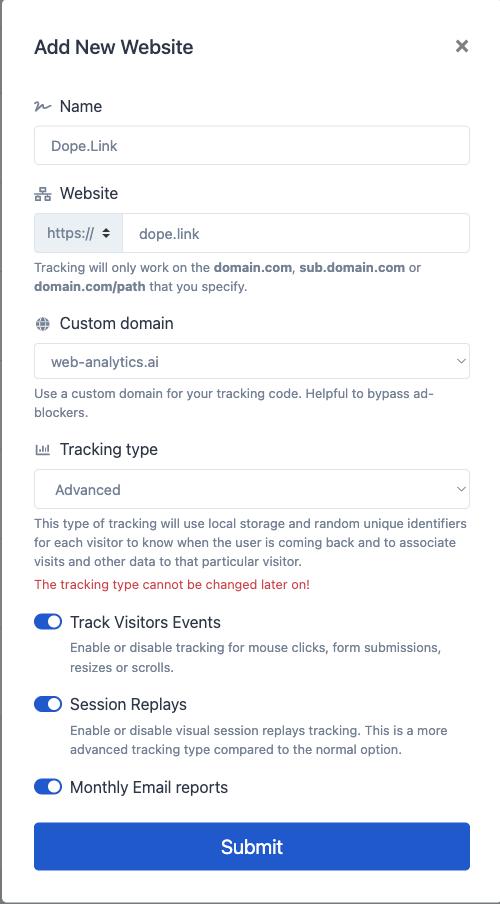
We offer two types of tracking - lightweight and advanced. You are free to choose either one, but once you select one, you may not be able to change it to the other type. You will have to add the website again.
Follow these steps to install your tracking code:
- Log in to your Web-Analytics.ai Account
- On the left-hand menu select the server icon where your 'websites' are
- On the top right of the page click on the 'Add Website' button
- Fill in all the required information on the form:
- Submit form and then find your website on the page and click on the tracking code icon
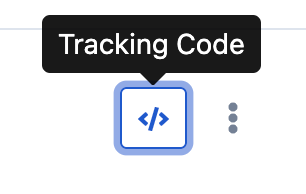
- Paste the tracking code within your websites' header tag on the pages you want to be tracked
- Go back to the tracking code modal on our website and click on 'verify installation' and click 'Verifiy'
- Alternatively you can modify the following URL with your website and pixel ID:
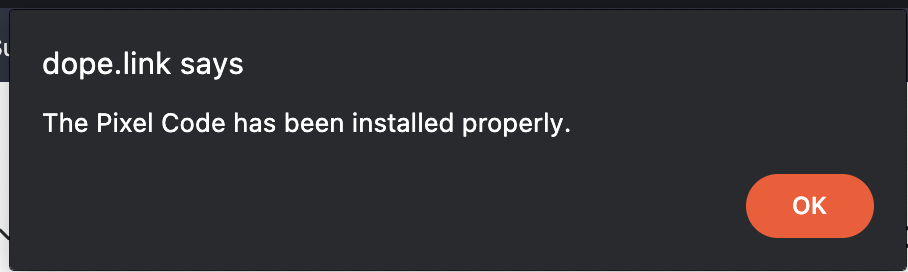
https://example.com/?pixel_verify=[Tracking ID] - Your website should pop up in a new tab and a pop-up should appear confirming your tracking code is successfully installed
If you have any questions, please contact our customer support team via live chat or by emailing analytics@dope.link
